
When you are preparing a presentation, editing an important document, attending an online meeting, or trying to meet an important deadline, a computer freeze can instantly disrupt your workflow and create unnecessary frustration. One moment everything is working normally, and the next your screen becomes unresponsive, applications stop reacting, and even simple commands refuse to work.
At this time, knowing the right troubleshooting steps can make the difference between a quick recovery and losing valuable files or hours of work. The good news is that most freezing and crashing problems can be fixed if you approach them properly. In many cases, the issue is caused by overloaded memory, overheating, outdated drivers, malware, or storage problems rather than permanent hardware failure.
This guide walks you through the most effective ways to troubleshoot a computer that keeps freezing or crashing, starting from simple fixes before moving to deeper solutions.
Table of Contents
1. Give Your Computer Time to Respond
Sometimes a computer is not fully frozen but temporarily overwhelmed. Heavy multitasking, large software installations, gaming, video rendering, or running too many browser tabs can push the processor and RAM to their limits.
If your fans are spinning loudly or the system suddenly becomes slow, wait a few seconds or even a few minutes before forcing a shutdown. The computer may simply be trying to finish a demanding task in the background.
As long as this does not happen frequently, giving the system time to recover may solve the issue without further troubleshooting.
2. Use Keyboard Shortcuts to Regain Control
When your computer freezes, becomes partially unresponsive, keyboard shortcuts can sometimes help restore control.
ALT + TAB
Pressing ALT + TAB on Windows allows you to switch between open applications. Sometimes only one program has frozen while the rest of the system is still working normally.
Switching to another application may allow Windows to recover control while the problematic app eventually shows a “Not Responding” message that you can close safely.
CTRL + ESC
CTRL + ESC opens the Start menu and transfers control to Windows Explorer. This can occasionally free up a locked desktop environment and restore responsiveness.
CTRL + ALT + DELETE
This remains one of the most useful troubleshooting shortcuts on Windows systems. Pressing CTRL + ALT + DELETE opens several recovery options including:
- Task Manager
- Sign out
- Restart options
From Task Manager, you can close applications that are consuming excessive memory or freezing the system.
You can also press:
- CTRL + SHIFT + ESC directly to open Task Manager faster.
On Mac systems:
- Command + Option + Esc opens the Force Quit menu.
- Command + Control + Power forces an immediate restart if the system is completely stuck.
3. Close Frozen Applications
If a single application is causing the freeze, ending that task may restore the system immediately.
On Windows:
- Open Task Manager
- Select the frozen application
- Click End Task
On Mac:
- Open Force Quit
- Select the problematic app
- Click Force Quit
Browsers like Chrome are common causes of freezing when too many tabs are open simultaneously.
Useful Chrome shortcuts include:
Windows
- ALT + F4 closes the browser window
- CTRL + SHIFT + T reopens the last closed tab
Mac
- Command + Shift + W closes browser windows
- Command + Shift + T restores closed tabs
Too many active tabs can consume massive amounts of RAM and slow down your system significantly.

4. Restart Your Computer Properly
If the system still refuses to respond, restarting becomes necessary.
Graceful Restart
Whenever possible, use the normal restart option from the Start menu or Task Manager. This allows Windows or macOS to close programs safely and reduce the risk of file corruption.
Forced Restart
If nothing responds at all, hold down the power button for about 10–20 seconds until the computer shuts down completely.
Forced shutdowns should only be used when absolutely necessary because they can sometimes damage unsaved files or corrupt system data.
5. Free Up Storage Space
A nearly full storage drive can slow down your computer dramatically and increase freezing problems.
Open File Explorer and check how much free space is left on your main drive. Delete unnecessary files, uninstall unused applications, empty the recycle bin, and remove temporary files regularly.
Systems using traditional hard drives often become much slower when storage space runs low. Upgrading to an SSD can greatly improve speed, responsiveness, and overall stability.
6. Check for Overheating
Overheating is one of the biggest reasons laptops freeze or shut down unexpectedly, especially in hot environments or during long work sessions.
Signs of overheating include:
- Loud fan noise
- Extremely hot keyboard surfaces
- Sudden shutdowns
- Lag during heavy tasks
Dust buildup inside cooling vents can block airflow and reduce cooling performance.
Always place laptops on hard flat surfaces instead of beds or pillows, clean the vents regularly, and consider using a cooling pad for better airflow. Persistent overheating may require professional servicing or thermal paste replacement.
7. Scan for Malware and Harmful Software
Malware, fake optimization tools, cracked software, and suspicious downloads can cause instability, crashes, and slow performance.
Run a full antivirus scan using trusted security software and remove any suspicious applications immediately.
Avoid:
- Cracked software
- Fake driver installers
- Random “PC speed booster” programs
- Unsafe downloads
Many freezing problems begin shortly after installing untrusted software.
8. Update Drivers and Your Operating System
Outdated drivers are one of the most common reasons computers begin freezing, crashing, showing black screens, or becoming unstable during normal use. Drivers help your operating system communicate properly with hardware components like your graphics card, Wi-Fi adapter, audio system, storage drive, and processor. When these drivers become outdated, corrupted, or incompatible, your computer may start behaving unpredictably, especially during gaming, video editing, multitasking, or software updates.
To reduce system problems, regularly update important drivers. It is always safer to download updates directly from trusted manufacturers like NVIDIA, AMD, Intel, Dell, HP, or Lenovo instead of random third-party driver websites that may contain fake or harmful files.
Keeping your operating system updated is equally important because system updates often include security patches, performance improvements, bug fixes, and stability enhancements that help prevent freezing and crashing issues.
9. Check Hard Drive Health
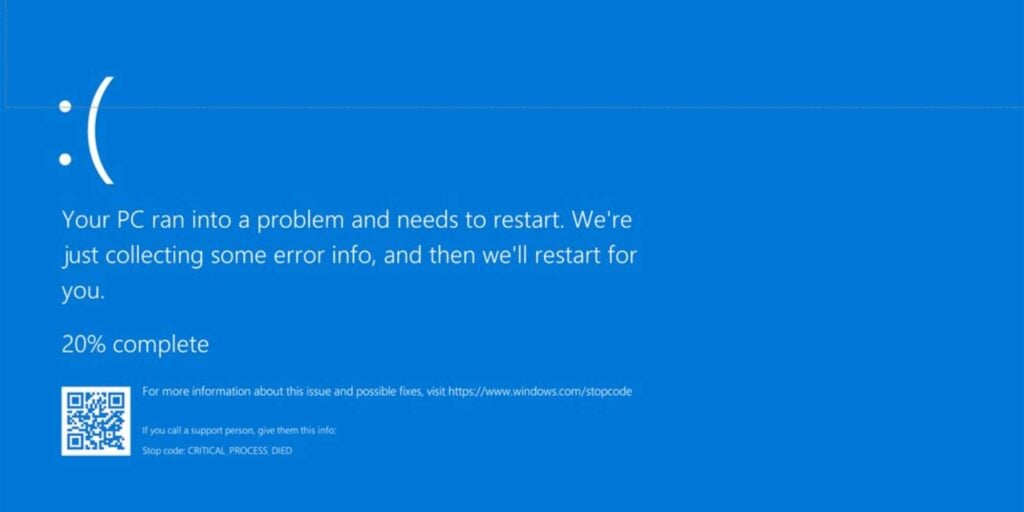
Your storage drive plays a major role in your computer’s overall speed and stability. When a hard drive or SSD starts failing, the computer may begin showing signs like slow startup times, frequent freezing, corrupted files, random crashes, or even blue screen errors.
In some cases, applications may refuse to open properly, files may suddenly disappear, or the system may struggle to boot into Windows.
One major warning sign of a failing hard drive is unusual clicking or grinding sounds coming from the laptop or desktop. Repeated boot failures, missing files, and extremely slow performance can also indicate storage problems.
If you suspect your drive is failing, back up important files immediately to avoid permanent data loss. Replacing a damaged hard drive early can save your system from more serious problems and restore normal performance before the drive completely stops working.
10. Protect Your Computer from Power Problems
Power fluctuations remain a major issue for computer users in Nigeria. Sudden outages and unstable voltage can damage components, corrupt files, and trigger repeated crashes.
Using a quality UPS or surge protector helps protect your system from electrical damage while also giving you enough time to save your work during blackouts.
This is especially important for desktop systems, gaming PCs, and workstations.
When to See a Technician
If your computer continues freezing or crashing even after trying basic troubleshooting steps, it may be time to seek professional repair. Persistent system problems can sometimes point to deeper hardware issues that cannot be fixed with simple software adjustments or updates.
You should consider getting technical help if your computer crashes repeatedly, refuses to boot properly, shows constant blue screen errors, overheats excessively, or starts making unusual clicking, grinding, or buzzing sounds. Hardware warning messages, failing storage drives, damaged RAM, faulty motherboards, or cooling system problems can all cause these symptoms.
Ignoring these warning signs can eventually lead to more serious damage, complete hardware failure, or permanent data loss. Getting the system checked early can help prevent more expensive repairs and keep your computer running reliably.
Conclusion
Computer freezing and crashing can happen for many reasons, including overheating, low memory, outdated drivers, malware infections, failing storage drives, or unstable electricity. Fortunately, many of these issues can be fixed with proper troubleshooting and regular maintenance.
The best approach is to stay calm, identify the likely cause, and solve the problem step by step instead of immediately assuming the computer is permanently damaged.
Regular updates, proper cooling, sufficient storage space, antivirus protection, and stable power supply can go a long way toward keeping your computer fast, reliable, and productive for years.