Choosing a monitor in 2026 feels like a leap into the future, but the cables can still be confusing. If you are shopping at Kara.com.ng for a high-performance laptop like the Dell XPS 16 or the ASUS ROG Zephyrus Duo, you have likely seen “USB-C” and “Thunderbolt” used interchangeably.
However, while they look identical, the way they handle your external monitor can be the difference between a blurry 30Hz mess and a crisp, dual-8K workstation.
Table of Contents
USB-C vs. Thunderbolt: Which One Supports Your External Monitor?
The “Identical Twin” Problem: Identifying Your Port
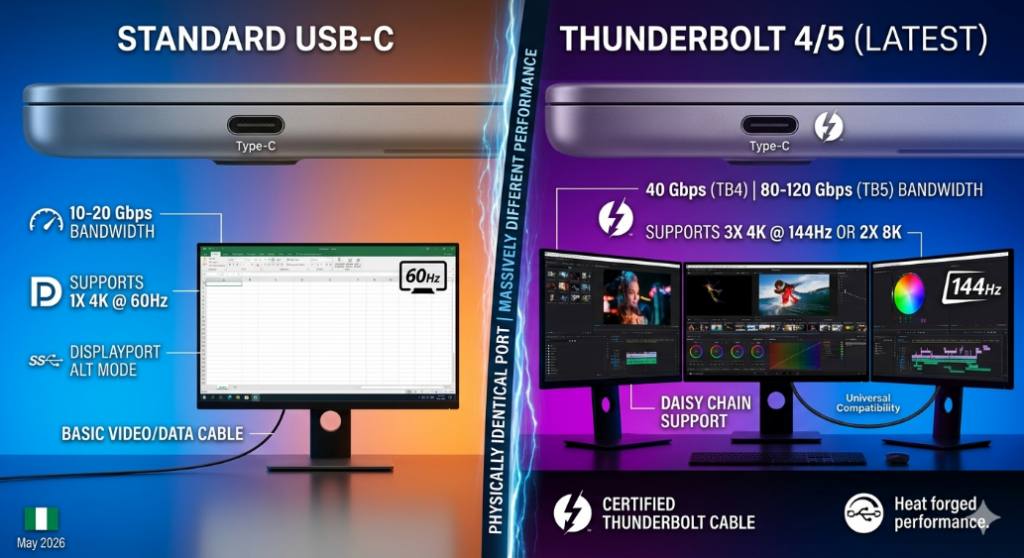
The biggest challenge for Nigerian buyers is that both ports use the same USB Type-C connector. You cannot tell them apart by size or shape. To identify them, you must look for the “Stamp of Power”:
- Thunderbolt Ports: These are almost always marked with a small Lightning Bolt symbol next to the port. On 2026 MacBook Pros, these are Thunderbolt 5 ports; on most premium Windows laptops, they are Thunderbolt 4.
- Standard USB-C Ports: These may have a “SuperSpeed” (SS) logo or a small “D” icon (indicating DisplayPort Alt Mode). If there is no icon at all, it is likely a basic data/charging port that may not support video output.
Pro Tip: Always check the “Tech Specs” on the product page. If it says “USB-C 3.2,” it might only support one monitor. If it says “Thunderbolt 5,” you are holding the gold standard of connectivity.
Performance Breakdown: Bandwidth and Resolution
In 2026, the performance gap has widened significantly.
| Feature | USB-C (DisplayPort Alt Mode) | Thunderbolt 4 | Thunderbolt 5 (Latest) |
|---|---|---|---|
| Max Bandwidth | 10–20 Gbps | 40 Gbps | 80–120 Gbps |
| Monitor Support | Usually 1x 4K @ 60Hz | 2x 4K @ 60Hz or 1x 8K | 3x 4K @ 144Hz or 2x 8K |
| Daisy Chaining | Not Supported | Supported | Supported (Enhanced) |
| Power Delivery | Up to 60W–100W | Up to 100W | Up to 240W |
Why this matters in Nigeria: If you are a video editor in Lagos using a dual-monitor setup, a standard USB-C port will likely struggle, causing screen flickering or lower resolutions. Thunderbolt ensures that both monitors run at full refresh rates without lag.
Concerns and Limitations: The Thunderbolt “Tax”
While Thunderbolt is superior, it comes with specific “user concerns” you should consider:
- Cable Quality: You cannot use a cheap ₦2,000 phone charging cable for a Thunderbolt monitor. You must use a Certified Thunderbolt Cable. Using the wrong cable will “downgrade” your connection to basic USB speeds.
- Bandwidth Sharing: If you connect a high-speed external SSD and an 8K monitor to the same Thunderbolt port via a hub, they share the 40Gbps/80Gbps pipe. This can sometimes lead to slower file transfers while the monitor is active.
- Heat: Thunderbolt controllers generate more heat than standard USB-C. If you are working in a non-AC environment in Nigeria, ensure your laptop has proper ventilation when docked to multiple monitors.
Leading Models Supporting Both Standards
If you want the flexibility of both, these 2026 flagship models at Kara.com.ng are the top picks:
- Dell XPS 16 (2026): Features multiple Thunderbolt 4 ports that are backward compatible with all USB-C monitors.
- MacBook Pro (M4 Pro/Max): The industry leader, now featuring Thunderbolt 5, providing unprecedented 120Gbps bandwidth for professional color-grading monitors.
- ASUS ROG Zephyrus Duo (2026): A dual-screen beast that utilizes Thunderbolt to power its internal second screen and external 4K gaming monitors simultaneously.
- HP Spectre x360: The perfect “Executive” choice, offering dedicated Thunderbolt ports for clean, single-cable desk setups.
Frequently Asked Questions (FAQs)
Q: Can I plug a USB-C monitor into a Thunderbolt port?
A: Yes! Thunderbolt ports are “Universal.” They support USB-C, DisplayPort, and Thunderbolt devices. It is the “One Port to Rule Them All.”
Q: Does my phone’s USB-C cable work for my monitor?
A: Generally, no. Most phone cables only support USB 2.0 data speeds (480Mbps), which is not enough for video. You need a cable rated for “Video” or “10Gbps/40Gbps.”
Q: What is “Daisy Chaining”?
A: This is a Thunderbolt-exclusive feature where you plug your laptop into Monitor A, and then plug Monitor A into Monitor B. Only one cable touches your laptop, keeping your desk extremely clean.
Q: Why is my monitor blurry when using a USB-C Hub?
A: Many cheap hubs in the market “split” the bandwidth. If the hub has USB ports and HDMI, it might limit the HDMI output to 30Hz, which looks laggy. A Thunderbolt dock prevents this.
Final Verdict for Kara Customers
If you are buying a laptop for basic office work and only need one external screen, a USB-C port with DisplayPort Alt Mode is sufficient. However, if you are a professional, a gamer, or someone who wants to “future-proof” their setup for the next 5 years, Thunderbolt is the only way to go.
Ready to build your dream workstation?
- Browse Thunderbolt Laptops on Kara.com.ng
- Need help picking the right cable? Chat with our experts on WhatsApp: +2349091909269