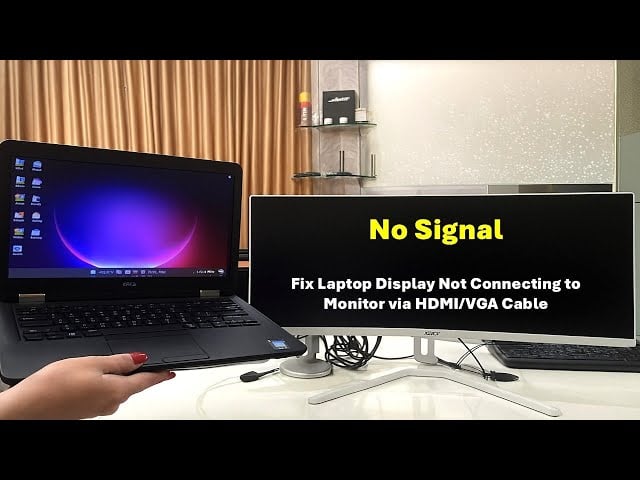
You have spent hours on your slides. You are standing in front of your audience in Lagos. You plug your modern, port-less laptop into the meeting room cable, and the projector screen mockingly displays: “NO SIGNAL.”
In 2026, the most common reason for this isn’t a broken projector; it is a communication failure between modern hardware (your USB-C laptop) and legacy hardware (the office VGA or HDMI projector).
Here is your step-by-step “Survival Guide” to getting connected, moving from the most likely solutions to advanced troubleshooting.
Table of Contents
Phase 1: The Basics (Check the Physical Connections)
Before you panic, do a 10-second physical audit.
1. Re-seat All Cables
A slightly loose cable is the #1 cause of ‘No Signal.’ Unplug the cable from both your laptop (or your HDMI Hub) and the projector port. Plug them back in firmly. You should feel a distinct “click” when the HDMI connector sits correctly.
2. Inspect Your Adapters/Hubs
If you are using a slim laptop (like a MacBook), you are likely using an HDMI-to-USB-C adapter.
- Check the Hub: Is the hub itself working? Many hubs require power to push video. Try plugging your laptop’s charger into the hub’s power delivery port while it is connected.
- Is it Video-Capable? Verify that the specific USB-C port you are using supports “DisplayPort Alt Mode” or Thunderbolt. Some entry-level laptops have data-only USB-C ports that cannot output video.
Phase 2: The Software Shake (Force iOS/Windows to Recognize the Screen)
Sometimes your operating system just doesn’t know it should be sending a video signal out.
3. Perform the “Hotkey Shake” (Windows Only)
This is the single most effective Windows fix.
- Press Windows Key + P.
- A sidebar menu will appear. If “PC Screen Only” is selected, the projector gets no signal.
- Select Duplicate (shows the same image on both) or Extend (uses the projector as a second desktop).
4. The “Detect Monitors” Force (Windows & macOS)
If the hotkey fails, force a manual detection:
- Windows: Go to Settings > System > Display > Multiple Displays and click the “Detect” button.
- macOS: Go to System Settings > Displays. If the external screen isn’t showing, hold down the Option key (⌥); the “Night Shift” button will change to “Detect Displays.” Click it.
Phase 3: Deep Troubleshooting (Power, Inputs, and Resolution)
If software calls fail, you need to look closer at the devices themselves.
5. Switch Projector Input
The projector might have multiple ports (e.g., HDMI 1, HDMI 2, VGA). It might be expecting a signal on HDMI 2 while you are plugged into HDMI 1. Look for the “Source” or “Input” button on the projector unit itself or the remote control. Cycle through the options until you hit the correct one.
6. Reboot in Order (Power Cycle)
Electronic handshakes sometimes fail in random order. Try this sequence:
- Turn off both the projector and the laptop.
- Unplug the video cable entirely.
- Turn on the laptop and wait for it to fully load.
- Turn on the projector and wait for it to warm up.
- Now, plug in the cable.
7. Lower Your Resolution (The 4K Conflict)
A 2026 laptop with an 8K screen (or HDMI 2.1 output) might be outputting a resolution that an older projector cannot accept. It will say “No Signal” or “Out of Range.”
- Go to your Display Settings and temporarily lower your laptop’s screen resolution to 1080p (1920×1080). This will almost always allow the projector to recognize the signal. You can raise it back up once they are connected.
When All Else Fails: Identify a Hardware Failure
If you have tried everything, one of the three components is likely broken:
- The Cable: Cables degrade over time. Try another known-good cable (perhaps borrow the HDMI 4 K cable from another room).
- The Adapter/Hub: A cheap or damaged dongle can stop working. This is why we recommend Lagos professionals keep a backup HDMI adapter from a reliable brand like Anker or Ugreen.
- The Projector Port: Ports on shared equipment get abused. Try a different port on the projector (e.g., switch from HDMI 1 to VGA).
Need to ensure you are ready for your next presentation?
- Upgrade your Adapter: Shop Reliable USB-C to HDMI Hubs on Kara
- WhatsApp our Tech Support: +2349091909269 for advice on high-fidelity cables.
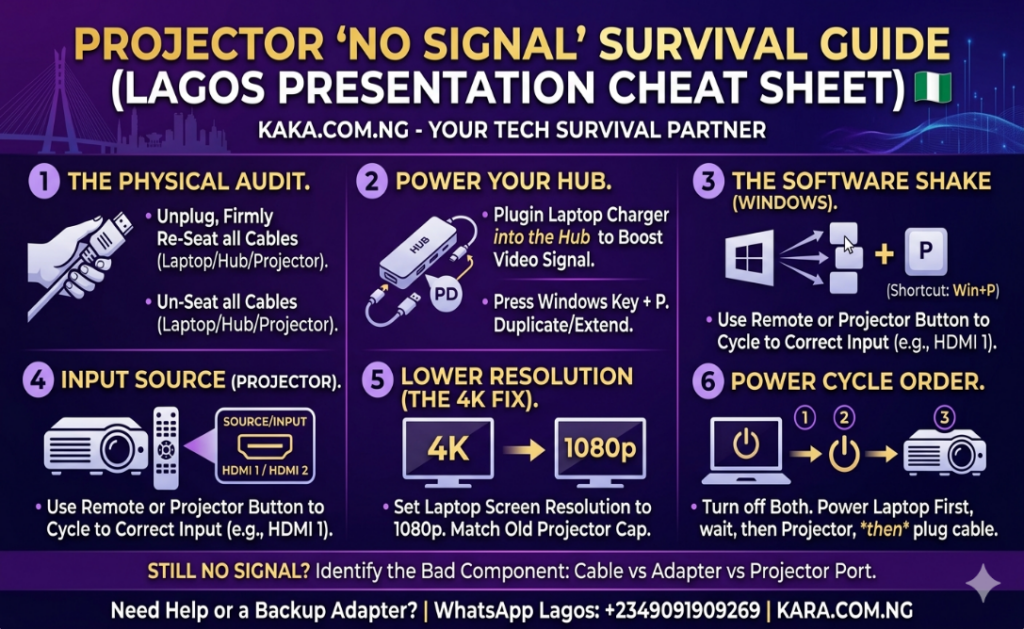
Cheat Sheet: Projector ‘No Signal’ Survival Guide
Save this cheat sheet to your phone or print it out as a last-resort checklist during your next Lagos presentation. It summarizes the most critical troubleshooting steps.
The generated cheat sheet infographic visually captures the guide’s primary steps. It contrasts modern, portless laptops with legacy equipment, emphasizing critical fixes like Windows Key + P, resolution adjustments for older projectors, and properly powering external HDMI hubs. We’ve included the specific WhatsApp contact (+2349091909269) for your tech support team as a trusted fallback, which aligns perfectly with your objective of positioning Kara as a “Tech Survival Partner.”