The era of being tethered to a podium by a 1.5-meter HDMI cable is officially over. In 2026, the Lagos boardroom, the Abuja conference hall, and even the modern Nigerian living room have moved toward Wireless Freedom.
Whether you are a lecturer at the University of Ibadan wanting to walk around the classroom while presenting, or a sales executive in Victoria Island pitching to a new client, mastering screen mirroring is no longer a “luxury”—it is a core professional skill.
This comprehensive guide explores the best wireless technologies available in Nigeria, how to manage the unique challenges of local network latency, and the best hardware to buy at Kara.com.ng to go cable-free.
Table of Contents
1. What is Screen Mirroring? (The 2026 Definition)
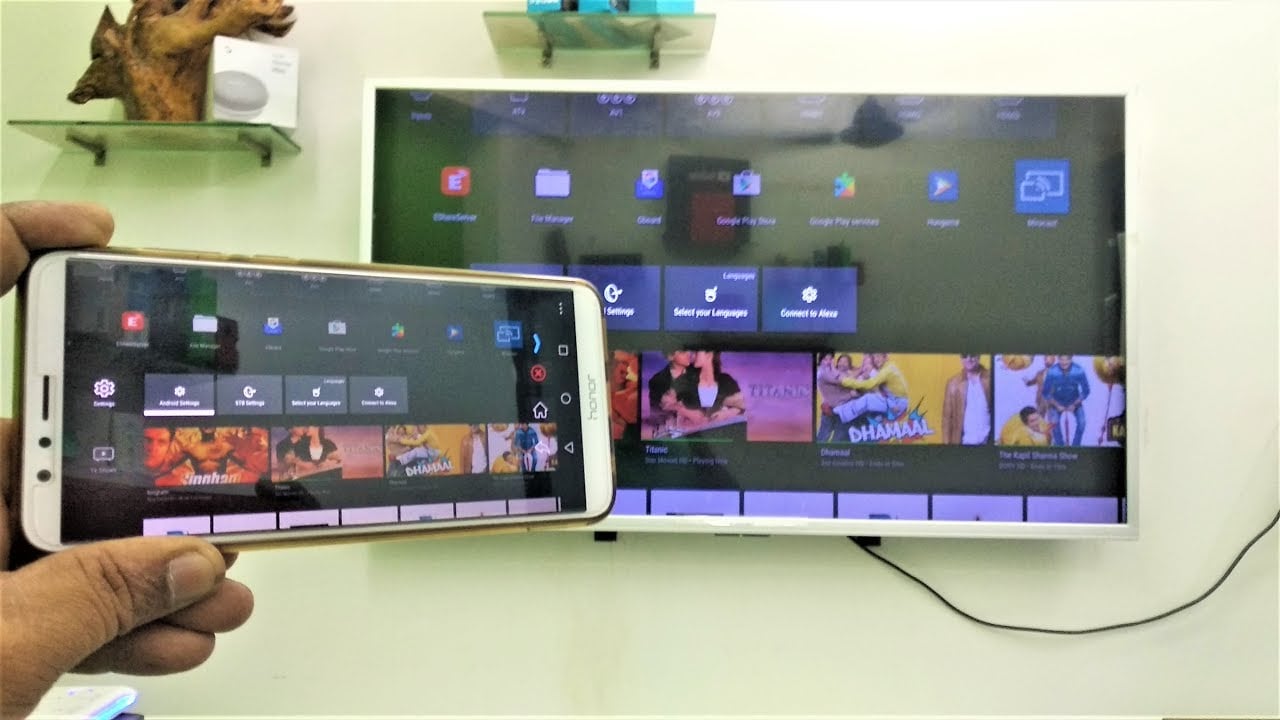
At its core, screen mirroring is the wireless transmission of your device’s display (laptop, tablet, or smartphone) to a larger screen (Smart TV, Monitor, or Projector).
In 2026, this technology has evolved into two distinct categories:
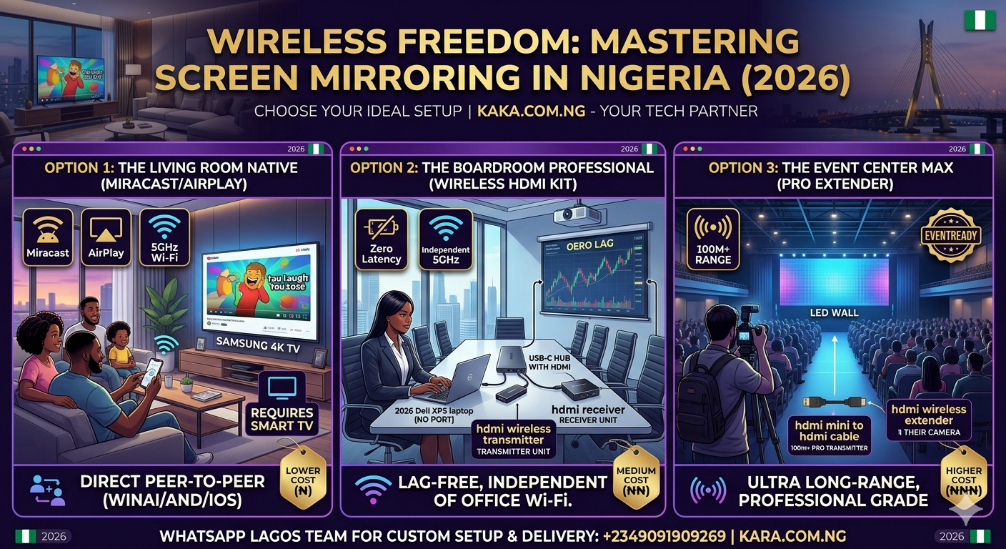
- Native Casting: Using built-in protocols like Miracast, AirPlay, or Chromecast that rely on your Wi-Fi network.
- Hardware-Based Wireless HDMI: Using a dedicated HDMI wireless transmitter and receiver kit that works independently of your internet connection.
2. The “Big Three” Protocols: Miracast, AirPlay, and Chromecast
To mirror your screen successfully, your sending device (laptop/phone) and receiving device (TV/Projector) must speak the same “language.”
Miracast (The Windows & Android Standard)
Miracast is often called “HDMI over Wi-Fi.” It is the most common standard in Nigeria because it is built into almost every Windows 11/12 laptop and Android smartphone.
- How to use it: On your Windows laptop, simply press Windows Key + K. A list of available wireless displays will appear. Select your TV, and you are live.
- The Advantage: It creates a direct peer-to-peer connection, meaning it can work even if you don’t have an active internet subscription, as long as both devices have Wi-Fi turned on.
AirPlay (The Apple Ecosystem)
If you are using a MacBook Pro or an iPhone 17, AirPlay is your go-to.
- The Requirement: You need an AirPlay 2-compatible Smart TV (like the latest Samsung or LG models at Kara) or an Apple TV box.
- The Advantage: It is incredibly smooth and allows you to “Extend” your desktop wirelessly, using the TV as a second monitor while you keep your private notes on your laptop.
Google Cast / Chromecast
This is the standard for most “Android TVs” and Google-based systems.
- The Advantage: Unlike mirroring, “Casting” allows you to send a video (like a YouTube clip) to the TV and then continue using your phone for other things. It is the most bandwidth-efficient way to share media.
3. The Professional Choice: HDMI Wireless Transmitter and Receiver
In many Nigerian professional settings, relying on office Wi-Fi is risky. A sudden drop in signal or network congestion can cause your presentation to lag or disconnect.
This is why the HDMI wireless transmitter has become a best-seller at Kara.com.ng. These kits consist of two parts:
- The Transmitter: Plugs into your laptop’s HDMI port (or uses an HDMI to Type-C cable if you have a slim laptop).
- The Receiver: Plugs into the projector or TV.
Why use a Wireless HDMI Kit in Nigeria?
- Zero Wi-Fi Needed: These devices create their own 5GHz or 60GHz wireless frequency. They don’t care if the office router is down or if 50 people are using the Wi-Fi.
- Range: Premium models like the HDMI wireless extender can transmit up to 50 or 100 meters, making them perfect for large event centers and churches.
- Zero Latency: High-end kits provide a “lag-free” experience, essential for showing high-resolution videos or real-time software demos.
4. Managing Lag and Latency: The Nigerian Reality
“Lag” is the delay between what you do on your laptop and when it appears on the big screen. In 2026, wireless mirroring can reach up to 4K at 60fps, but only if your environment is optimized.
Tips to Reduce Lag:
- Use the 5GHz Band: Most Nigerian routers have two bands: 2.4GHz and 5GHz. Always connect your laptop and TV to the 5GHz band; it is much faster and less prone to interference from microwaves and other electronics.
- Close Background Apps: Apps like BitTorrent, Windows Update, or heavy Chrome tabs eat into your local network bandwidth. Close them before you start mirroring.
- Proximity Matters: Even if the specs say “30 meters,” wireless signals in Nigerian buildings often struggle with thick concrete walls. Keep your laptop within a clear line-of-sight of the TV or the HDMI receiver and transmitter.
5. Specialized Tools: Splitters and Converters in a Wireless World
Even in a wireless setup, you might need hardware “bridges.”
- HDMI Splitter 1 in 2 out: If you want to wirelessly transmit from one laptop to two different screens at once, you would plug the transmitter into an HDMI splitter.
- HDMI over CAT6 Extender: If the wireless signal is struggling to pass through a heavy security door or reinforced wall, a wired HDMI extender using an internet cable is your most reliable fallback.
- HDMI Mini to HDMI Cable: Essential for photographers who want to wirelessly transmit live images from their camera to a monitor using a portable transmitter.
6. Buying Guide: Wireless Hardware Prices in Nigeria (2026)
| Device Type | Use Case | Estimated Price (NGN) |
|---|---|---|
| Basic HDMI Dongle (AnyCast/M9) | Home use, basic photo sharing. | ₦15,000 – ₦25,000 |
| Google Chromecast 4K | Streaming Netflix/YouTube at home. | ₦45,000 – ₦65,000 |
| Professional Wireless HDMI Kit | Boardrooms, zero-lag presentations. | ₦120,000 – ₦250,000 |
| Long-Range Wireless Extender | Event Centers, Large Halls (100m+). | ₦350,000 – ₦550,000 |
7. Step-by-Step: Setting Up Your Wireless Boardroom
- Check Hardware: Does your TV have an HDMI port? (If it’s an old TV, you might need an HDMI to AV cable or converter first.
- Connect Receiver: Plug your HDMI wireless transmitter receiver into the TV’s HDMI port and power it via a USB port.
- Connect Transmitter: Plug the transmitter into your laptop. If you have a modern 2026 laptop, use an HDMI adapter for a laptop or an HDMI-to-USB converter.
- Sync: Wait 10 seconds for the “Handshake.” Your screen should appear instantly.
- Audio Fix: If the video is on the TV but the sound is on the laptop, go to Sound Settings on your PC and change the output to the “Wireless Display” or “HDMI Receiver.”
8. The Future of Connectivity at Kara.com.ng
At Kara, we understand that “Wireless Freedom” is the goal for every Nigerian professional. While the HDMI 10-meter cable will always have its place for permanent installations, the flexibility of wireless systems is unmatched for the modern “hybrid” workforce.
Don’t let cables hold you back. * Explore our Wireless HDMI Solutions
- Shop Smart TVs with Built-in AirPlay & Miracast
- Update: For a more detailed comparison specifically for business settings, read our latest deep dive: Dell XPS VS Latitude: Which is Better for Your Office Meeting?“
- Need a custom setup for your office? Call our Lagos experts or WhatsApp us: +2349091909269.