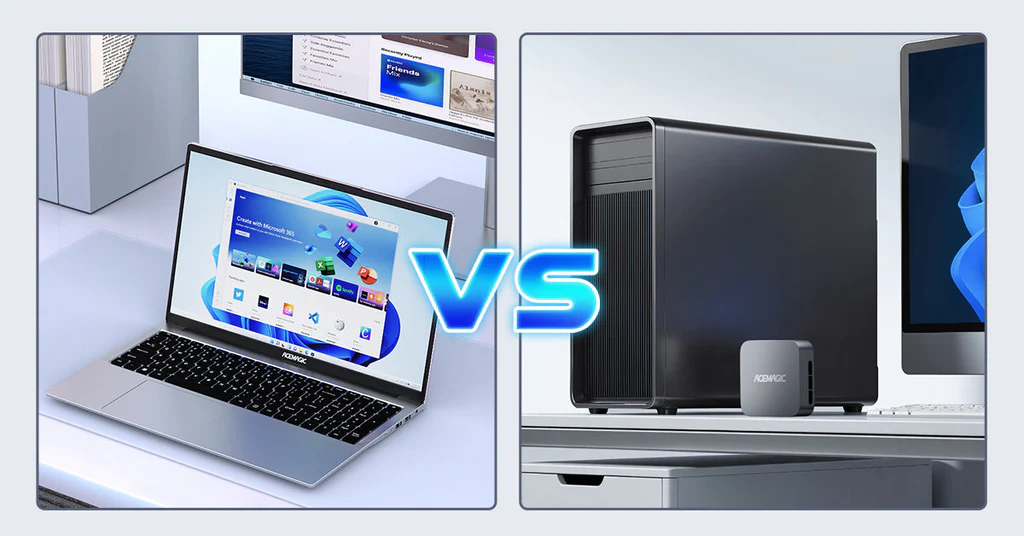
In the modern corporate landscape of 2026, the debate between mobility and stability has never been more relevant for Human Resources professionals. While laptops have long been the “default” for many, there is a compelling, data-driven case for the HR manager to return to the dedicated desktop workstation.
This guide explores why choosing a desktop over a laptop can be a strategic decision for HR departments focusing on high-output productivity, ironclad security, and long-term financial value.
Table of Contents
Aligning Work Productivity: The Desktop Advantage
HR managers are the “engine room” of any organization. On a typical Tuesday, an HR manager might be switching between massive employee payroll spreadsheets, a video conference with a potential hire, and a confidential internal investigation report.
Multi-Tasking Power
Desktop computers generally house full-voltage processors compared to the power-efficient, throttled chips found in slim laptops. This translates to smoother performance when running multiple high-demand applications. A desktop ensures that your recruitment software doesn’t stutter while you have 40 Chrome tabs open for candidate sourcing.
Desktop Screen Real Estate
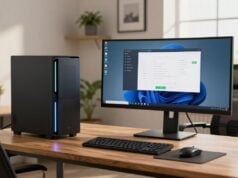
Productivity is often limited by what you can see. While a laptop caps you at 14 or 16 inches, a desktop setup lets you use dual 27-inch monitors. For HR, this means having the “Employee Handbook” open on one screen while drafting an offer letter on the other—eliminating the “Alt-Tab” fatigue that slows down manual data entry.
For an HR Manager, communication isn’t just a side task—it’s the core of the job. In 2026, the shift in how apps like Microsoft Teams and WhatsApp are built has created a surprising performance gap between Desktop PCs and Laptops.
Here is an addendum on why the Desktop environment provides a superior “Command Center” for corporate communication.
Native App Performance: The WebView2 “Tax”
In 2026, most communication apps (WhatsApp, Discord, and the latest Teams) have moved to WebView2 or Electron frameworks. Essentially, these are “Websites disguised as Apps.”
- The Resource Hog: These apps are notorious for high RAM consumption. On a 16GB RAM laptop, having Teams, WhatsApp Desktop, and 20 Chrome tabs open can cause “System Stutter.”
- The Desktop Advantage: Because a Desktop PC typically has higher RAM ceilings (up to 64GB or 128GB) and better thermal management, it can absorb this “Web-App Tax” without slowing down your other work. On a laptop, these apps often trigger the cooling fans to spin at maximum speed, creating distracting background noise during calls.
Video Conferencing: Stability vs. Convenience
While a laptop has a built-in camera, the Video Conferencing Experience on a desktop is professional-grade by default.
- Thermal Throttling: Laptops often get hot during 1-hour video calls. To prevent overheating, the laptop’s CPU may “throttle” itself, leading to your video freezing or your voice becoming “robotic” to other participants. Desktops do not have this issue.
- Peripheral Superiority: A desktop allows you to use a Dedicated 4K Webcam and an External Microphone. For an HR Manager conducting a disciplinary hearing or a high-level interview, the clarity of your video and audio establishes authority and professionalism that a grainy 720p laptop camera cannot match.
WhatsApp Desktop vs. WhatsApp Web
Many HR professionals in Nigeria use WhatsApp for quick coordination.
- WhatsApp Desktop (App): As of 2026, the Windows Desktop App is the only version that supports Voice and Video Calling. If you need to jump on a quick call with a field agent, the app is mandatory.
- WhatsApp Web (Browser): While lighter on system resources, the Web version is prone to “Browser Lag” if you have too many tabs open. On a desktop PC, you can keep the standalone app pinned to your second monitor, ensuring you never miss a message while working on a different screen.
Screen Sharing & Multitasking
HR Managers often need to Share Screen to show payroll structures or policy documents.
- The “Lag” Factor: Screen sharing is one of the most CPU-intensive tasks. On a laptop, sharing a high-resolution window can cause the entire system to lag.
- Multi-Monitor Freedom: On a Desktop with dual monitors, you can share Monitor 1 (the document) while keeping Monitor 2 (the Teams chat and your private notes) completely hidden from the audience. Doing this on a single laptop screen is a “privacy tightrope” walk that often leads to accidental data exposure.
Desktop versus Notebook Laptop Comparism Table
| Feature | Laptop Experience | Desktop PC Experience |
|---|---|---|
| Teams/Zoom Performance | Prone to lag during long calls | Smooth & Consistent |
| Webcam Quality | Fixed 720p/1080p (Average) | Customizable (4K/HD) |
| System Heat | Significant (Fan noise) | Silent & Cool |
| Multitasking | Tab-switching fatigue | Expansive Dual-Screen view |
| Audio Clarity | Picks up keyboard typing noise | Isolated Pro-Audio options |
HR Pro-Tip: If you are buying a desktop for your HR team, ensure it has at least 16GB of RAM (though 32GB is the 2026 sweet spot) to handle the heavy resource demands of modern communication suites.
You may also want to find a Logitech 4K Webcam or a Noise-Cancelling USB Headset to complete your HR desktop setup.
Flexibility: A Different Kind of Movement
“Flexibility” in HR isn’t just about working from a coffee shop; it’s about hardware adaptability.
Laptops are rigid. If you need more RAM to handle a new AI-driven HR analytics tool, you often have to buy a whole new laptop. A desktop offers modular flexibility. You can easily upgrade the memory, storage, or even the graphics card without discarding the entire unit. For an HR manager, this means your computer grows with your responsibilities rather than becoming obsolete.
Security: Protecting the Company’s Most Sensitive Data
As an HR manager, you handle the “crown jewels” of corporate data: salaries, home addresses, social security numbers, and health records.
Physical Security of using the Desktop Computer
Laptops are prone to theft and loss. A laptop left in a car or a busy airport is a potential GDPR or data breach nightmare. A desktop, securely bolted or locked in a monitored office, significantly reduces the physical “surface area” of a data breach.
Network Integrity
Desktops are typically connected via hardwired Ethernet, which is inherently more secure and stable than Wi-Fi. In 2026, where sophisticated “man-in-the-middle” Wi-Fi attacks are common, the “fixed” nature of a desktop provides a controlled security perimeter that is easier for IT departments to defend.
Power Requirements and Thermal Management
Laptops are a constant battle against heat. To keep a laptop from melting, the system “throttles” (slows down) the CPU. Desktops have massive cooling fans and heat sinks, allowing the computer to run at 100% capacity all day without slowing down.
For HR managers who perform “Batch Processing”—such as running monthly payroll for 500+ employees—the desktop’s ability to maintain high speeds over long periods is a significant time-saver.
Price Value Comparison: Getting More for Less
When comparing a Business Desktop to a Business Laptop of equal price, the desktop invariably wins on raw specs.
| Feature | Business Desktop (Approx. ₦450k) | Business Laptop (Approx. ₦450k) |
|---|---|---|
| Processor | Intel Core i7 (Full Power) | Intel Core i7 (Ultra-Low Power) |
| RAM | 32GB (Upgradable) | 16GB (Often Soldered) |
| Storage | 1TB NVMe SSD | 512GB SSD |
| Connectivity | 10+ USB Ports, Dual HDMI, LAN | 2 USB-C Ports, Requires Dongles |
By choosing a desktop, an HR department can often outfit two managers for the price of one “executive” laptop, providing better value to the company.
Lifetime Value Ownership (LVO) of A Desktop Computer
The Lifetime Value Ownership of a desktop is roughly 2x to 3x higher than a laptop.
- Durability: Laptops suffer from hinge failure, keyboard wear, and battery degradation. A desktop has no moving hinges and no battery to swell.
- Repairability: If a desktop monitor fails, you replace the monitor (₦80k). If a laptop screen fails, the repair often costs 50% of the device’s value.
- Resale/Repurposing: An HR desktop from 2026 can be repurposed as a front-desk terminal or a file server in 2031. A 5-year-old laptop is usually e-waste.
Managing Power in Nigeria: The Inverter/UPS Factor
In the Nigerian context, the “battery” of a laptop is often seen as its biggest pro. However, for a professional HR setup, a desktop paired with a UPS (Uninterruptible Power Supply) or an Inverter is actually superior.
A laptop battery eventually dies and becomes a fire hazard. A Blue Gate or Mercury UPS provides surge protection that a laptop charger cannot match. By connecting your HR desktop to the office inverter, you get the stability of “NEPA-proof” power without the ergonomic compromises of a small laptop screen.
Ergonomics and Employee Wellness
HR managers are champions of “Occupational Health.” It is hypocritical to work on a cramped laptop that encourages slouching. A desktop setup allows for an Ergonomic Swivel Chair and a monitor at eye level, reducing long-term medical costs related to neck and back strain—costs that the company ultimately pays for.
Recommendations and Internal Links
For the HR Manager who values Security and Speed, we recommend the following setups from Kara.com.ng:
- The Workhorse: HP ProTower Desktops – Perfect for bulk data and payroll.
- The Power Protector: Mercury 2KVA UPS – Ensure your data is saved during a “blink” in power.
- The Productivity Screen: Samsung 27″ Curved Monitors – Reduce eye strain during long document reviews.
Conclusion: Unless your role requires you to be physically present at a different site every day, the Desktop Computer remains the superior tool for the modern HR professional. It is more secure, more powerful, and offers a significantly better return on investment (ROI).