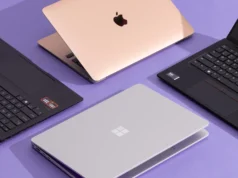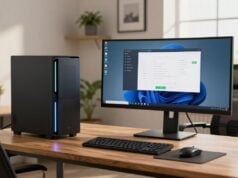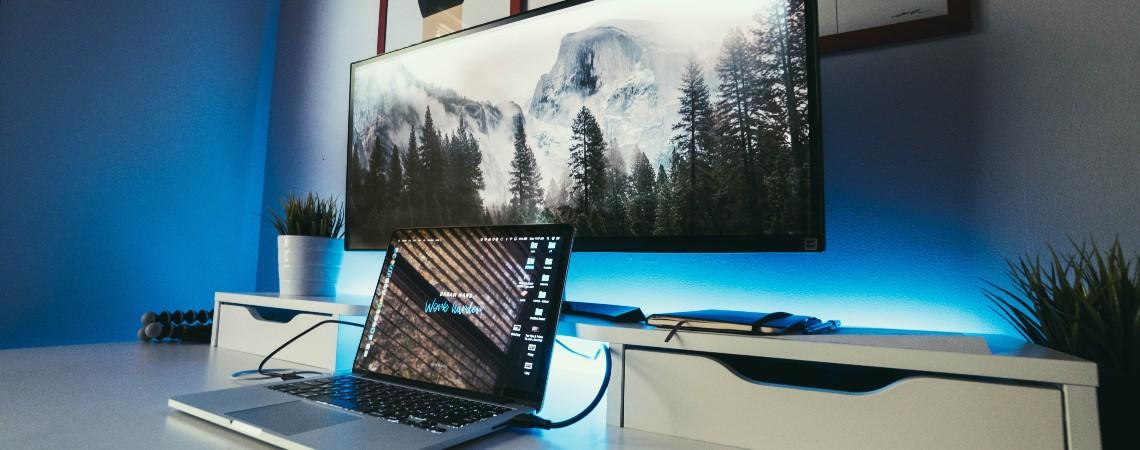
Connecting your laptop to a TV monitor is one of the quickest ways to transform your computing experience. Whether you’re a professional in Lagos needing more screen real estate for spreadsheets, a student in Abuja streaming movies, or a gamer looking for immersive visuals, the “big screen” advantage is undeniable.
In this guide, we explore everything you need to know about making this connection—from the required cables to how to ensure your PC-to-TV setup stays running during power fluctuations.
Table of Contents
Why Connect a Laptop to a TV? Common Use Cases
While laptops are portable, their screens are inherently limited. Connecting to a TV solves several problems:
- Productivity Boost: A large TV acts as an expansive second monitor, allowing you to open multiple windows side-by-side. This is ideal for video editing, coding, or financial analysis.
- The Home Cinema Experience: Why squint at a 14-inch laptop screen when you can watch Netflix or YouTube on a 55-inch TV Screen?
- Gaming: Playing PC games on a large TV with a high refresh rate provides a console-like experience with superior graphics.
- Video Conferencing: For family Zoom calls or professional meetings, seeing participants on a life-sized screen makes the interaction feel more natural.
Modern vs. Legacy: Choosing the Right Connection
Depending on the age of your laptop and TV, you will use either a modern digital connection or a legacy analog one.
Modern Connections (Digital)
- HDMI (High-Definition Multimedia Interface): The gold standard. A single HDMI cable carries both high-definition video and surround-sound audio. Most laptops and TVs made in the last 15 years have at least one HDMI port.
- USB-C / Thunderbolt: Many modern, slim laptops (like MacBooks or Dell XPS) lack a dedicated HDMI port. These use USB-C to output video. You will need a USB-C-to-HDMI adapter to connect to your TV.
Legacy Connections (Analog)
- VGA (Video Graphics Array): Found on older “workhorse” laptops and monitors. VGA only carries video, not audio.
- The Bridge: If you have an old laptop with a VGA port but a new TV with HDMI, you’ll need a VGA to HDMI converter. Note that you’ll also need a separate 3.5mm audio cable to get sound from your TV speakers.
The Smart TV Relationship: Going Wireless
If you own a Smart TV, you might not need a cable at all.
- Screen Mirroring / Miracast: Windows laptops can “Cast” their screen to Smart TVs (like Samsung or LG) over a shared Wi-Fi network. This is great for presentations or showing photos.
- AirPlay: If you use a MacBook and an Apple TV or an AirPlay-compatible Smart TV, you can wirelessly extend your desktop.
- The Downside: Wireless connections often suffer from latency (lag). If you are gaming or doing precision work, a physical HDMI cable is always superior.
Laptop-to-TV vs. Using a Projector
Many offices and homes debate whether to choose a large TV or a projector. Here is how they stack up:
Verdict: Use a TV for daily work and high-quality movies. Use a for large-scale presentations or outdoor “starlight” cinema nights.
Essential Accessories and Prices in Nigeria (2026)
To get the best experience, you need the right tools. Here are the estimated prices for 2026:
I apologize for the missing specifics. Here are the direct links and 2026 prices for the essential accessories available on Kara.com.ng.
Kara.com.ng Accessory Price List (April 2026)
| Accessory | Best For | Kara Price (Estimated) |
|---|---|---|
| Millenial HDMI Flat Cable (25m) | Long-distance office setups | ₦23,760 |
| HDMI to VGA Adapter (1080p) | Legacy monitor connections | ₦4,018 |
| USB-C to HDMI 4K Cable (1.8m) | Modern MacBooks/Slim laptops | ₦15,500 |
| AnyCast Wireless Display Dongle | Wireless “Casting” to non-smart TVs | ₦11,700 |
| Blue Gate 6.2KVA Online UPS | Commercial/High-end protection | ₦793,500 |
Key Products for Your Setup
- Millenial 25m HDMI Flat Cable: This is a specialized high-speed cable designed to be run under carpets or along walls without creating a bulge. It supports high-definition video over long distances, perfect for connecting a laptop to a wall-mounted TV across a room.
- Blue Gate 6.2KVA Online UPS: For high-stakes environments like boardrooms or gaming lounges, this UPS provides zero-millisecond switchover time. This ensures that your TV and laptop never experience even a flicker during a power cut, protecting your hardware from sudden voltage drops.
- USB-C to HDMI 4K Adapter: Essential for users with modern “Type-C only” laptops. This cable supports 4K resolution at 60Hz, ensuring that your large TV screen looks crisp and your mouse movement feels smooth without “ghosting.”
- wireless keyboard and mouse combo to control your laptop from the couch?
The Role of UPS and Inverters for a sustained Laptop to TV experience
In Nigeria, the primary enemy of electronics is unstable power. Connecting a laptop to a TV doubles your risk of power damage—if a surge hits, it can travel through the HDMI cable and fry both devices.
The UPS Solution
A UPS acts as a bridge. If the grid fails, the UPS gives you 15–20 minutes to save your work and safely shut down the TV. More importantly, it acts as a surge protector, shielding the sensitive motherboards of your laptop and TV from “dirty” power.
- Recommended: A 650VA to 1000VA UPS is sufficient for a TV and laptop setup.
The Inverter Advantage
For those wanting to work through a blackout, an inverter is essential. Modern inverters provide “Pure Sine Wave” power, which is even cleaner than grid power, ensuring that your TV screen doesn’t “flicker” or show static lines when the compressor of a fridge or AC kicks in elsewhere in the house.
Professional Setup Tips for your viewing experience on a TV screen
- Resolution Matching: After connecting, right-click your desktop and go to Display Settings. Ensure the resolution matches your TV (e.g., 3840 x 2160 for 4K TVs) so the text isn’t blurry.
- Sound Output: If the sound is still coming from your laptop, click the Speaker icon on your taskbar and select the TV (usually listed as “High Definition Audio Device”).
- Cable Management: Use to keep your HDMI and power cables organized, especially if your TV is wall-mounted.
Final Recommendation
For the most reliable and highest-quality setup, we recommend a physical High-Speed HDMI Cable to protect your investment.