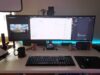
As of April 2026, the transition to remote work in Nigeria has evolved from a temporary fix to a permanent professional lifestyle. However, without the right setup, your “office” can quickly become a source of physical strain and digital frustration.
To maintain your peak performance while working from home, follow these nine essential steps to optimize your space, health, and energy.
Table of Contents
Invest in True Home Office Ergonomic Chairs (Your Back Will Thank You)
The biggest productivity killer is physical discomfort. Working from a couch or a dining chair leads to “tech neck” and lumbar strain.
- The Chair: Upgrade to a professional task chair. A mesh backrest, like the Emel Victory Swivel Chair (approx. ₦165,000), is ideal for Nigeria’s climate because it promotes airflow.
- The Desk: Ensure your elbows fall at a 90-degree angle to your keyboard. If you can’t afford a standing desk, use a Laptop Stand to bring your screen to eye level.
Master the “Fuel-Free” Power Strategy
With petrol prices at ₦1,257/litre, running a generator all day is no longer sustainable.
- The Inverter Advantage: A Mercury 1kVA Inverter paired with a Deep Cycle Battery can power your laptop, router, and fan silently for hours.
- Solar Backup: Adding even a single 200W Solar Panel can keep your batteries topped up during the day, eliminating “Naira Math” headaches.
Optimize Your Digital Tools (Laptops & Connectivity)
A lagging laptop is a lagging career. For 2026, your machine should handle heavy video conferencing and multitasking without breaking a sweat. To optimize your gadgets’ power consumption, you need to address three key areas: software efficiency, connectivity management, and physical battery health. Modern lithium-ion batteries are resilient, but they are highly sensitive to how they are charged and the environment they operate in.
Maximize Operating Efficiency & Idle Time
The most immediate way to extend your daily charge is to reduce the energy required by your screen and processor.
- Screen Optimization: The display is the single largest power consumer. Use Adaptive Brightness (Auto-Brightness) to let the device dim itself in dark environments. On smartphones with OLED screens, enabling Dark Mode saves significant power because black pixels are essentially turned off.
- Idle & Timeout Settings: Set your “Screen Timeout” (phones) or “Sleep Timer” (laptops) to the shortest comfortable duration (e.g., 30 seconds for phones, 5 minutes for laptops). This prevents the device from burning power while sitting unused.
- Power Saver Modes: Don’t wait until you are at 10%. Proactively turning on Battery Saver or Low Power Mode at 30% or 40% restricts background app activity and lowers the refresh rate (e.g., from 120Hz to 60Hz), which can cut display power consumption by up to 40%.
Manage Connectivity & Bluetooth Modes
Wireless radios (Wi-Fi, Bluetooth, GPS) are “always-on” energy drains that scan for signals even when not in active use.
- Toggle Unused Radios: If you aren’t using a Bluetooth speaker or Wi-Fi, turn them off. If you are in an area with poor cellular reception, turn on Airplane Mode; otherwise, your phone will drain its battery trying to “find” a signal at high power.
- Bluetooth Low Energy (BLE): Modern wearables use BLE, which operates with a low duty cycle to transmit data in tiny bursts. However, your phone still scans for standard Bluetooth devices in the background. Go to your location services settings and disable Bluetooth Scanning and Wi-Fi Scanning to stop the hardware from constant background “pings.”
- Location Services: Audit your apps and change permissions from “Allow all the time” to “Only while using the app.” This prevents GPS from waking up your processor while the phone is in your pocket.
Protect Health via Charge & Discharge Cycles
A “cycle” is one full discharge and recharge ($0\% \to 100\%$). Lithium-ion batteries have a finite number of these before they degrade.
- The 20-80 Rule: Repeatedly charging to 100% or letting the battery drop to 0% puts physical stress on the cells. The “sweet spot” for longevity is keeping your battery between 20% and 80%. Many modern laptops and phones have a “Protect Battery” or “Optimized Charging” setting that stops charging at 80% to prolong battery life.
- Heat Management: Heat is the silent killer of batteries. Avoid using graphics-heavy apps or fast-charging your device in direct sunlight or tucked under a pillow. If a device gets hot, it drains faster and permanently loses capacity.
- Calibration: While you should avoid 0%, it is helpful to occasionally (once every 2–3 months) drain the battery to under 10% and then charge it fully to 100%. This “calibrates” the digital sensor so your device displays an accurate battery percentage.
Summary Table: Power Optimization Checklist
| Feature | Action to Take | Power Saved |
|---|---|---|
| Display | Enable Dark Mode & Adaptive Brightness | High |
| Refresh Rate | Drop from 120Hz to 60Hz | Medium |
| Radios | Disable Bluetooth/Wi-Fi background scanning | Medium |
| App Activity | Restrict “background usage” for non-essential apps | Medium |
| Health | Maintain charge between 20% and 80% | Longevity |
If you’re looking for a new device, Kara team can help you find laptops with the best battery life or high-capacity power banks to keep your current gadgets running longer
- The Laptop: The MacBook Air M4 is the ultimate remote work tool due to its 18-hour battery life and silent operation. If you prefer Windows, the Dell Latitude 7450 offers enterprise-grade reliability.
- The Network: Don’t rely on a phone hotspot. A dedicated TP-Link Wireless Router ensures stable Wi-Fi for every corner of your home.
Control the Climate: Fan vs. Air Conditioner
Temperature directly affects your brain’s processing speed.
- The Efficiency Rule: Use a Ceiling Fan for 80% of the day—it consumes only 70 Watts compared to an AC’s 1,500 Watts.
- Smart AC Usage: If you must use an Air Conditioner, set it to 24°C to 26°C. This is the “productivity sweet spot” that keeps you cool without causing your electricity bill to skyrocket.
Smart Energy & Charging Habits
Protect your expensive devices by charging them intelligently.
- The 20-80 Rule: To extend your Smartphone and laptop battery life, try to keep the charge between 20% and 80%.
- Avoid Overcharging: Unplug your laptop once it reaches 100% to prevent heat-related wear. Always use the original Charger to avoid damaging the internal cells.
Eliminate Noise Pollution
The “constant hum” of a neighbor’s generator can reduce your cognitive focus by up to 30%.
- Silence is Golden: Transitioning to an Inverter system provides a silent, fume-free environment.
- Audio Focus: If the noise is unavoidable, invest in Noise-Cancelling Headphones to create a private sound bubble for your meetings.
Modernize Your Paperwork
A cluttered desk is a cluttered mind.
- Compact Printing: An HP or Canon Printer with wireless capabilities allows you to print from your phone or laptop across the room, keeping your main desk clear of extra hardware.
Adopt Healthy “Desk Habits”
- The 20-20-20 Rule: Every 20 minutes, look at something 20 feet away for 20 seconds. This prevents digital eye strain.
- Movement Breaks: Stand up and stretch every hour. A quick walk around the house resets your focus.
Designate a “Finish Line”
Remote work fails when you never stop working.
- Shut Down: When your shift ends, physically close your laptop and turn off your desk lamp. This tells your brain that the “office” is closed.
Essential Home Office Upgrades on Kara.ng
| Category | Recommended Product | Best For |
|---|---|---|
| Chair | Emel Victory Swivel | Breathable comfort in heat |
| Laptop | Dell Latitude 7450 | Reliable Windows performance |
| Power | Blue Gate 6.2KVA UPS | Boardroom-level protection |
| Network | TP-Link Archer AXE75 | High-speed Wi-Fi 6E |
Conclude your setup by focusing on long-term savings. While a solar system or a premium ergonomic chair has an upfront cost, the increase in your daily output and the reduction in fuel bills will pay for the investment within the first few months.