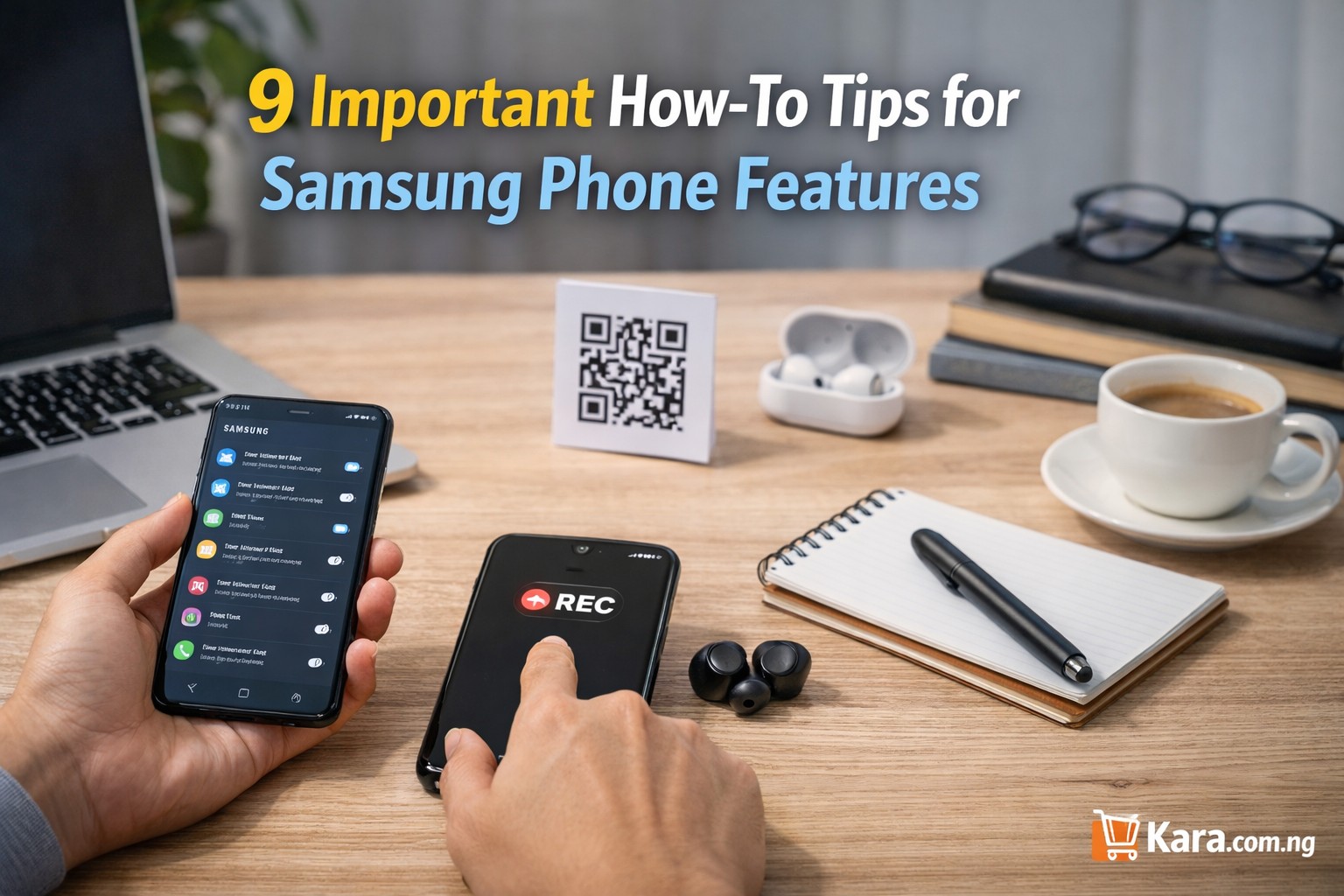
Samsung phones are widely used in Nigeria because they offer good performance, strong cameras, and reliable software support. Whether you are using a Galaxy A series or a Galaxy S device, there are several built in features many users do not fully understand. Knowing how to control settings like call forwarding, screen recording, safe mode, and app privacy can make everyday use much easier. This guide explains how to use Samsung phone features step by step for beginners so you can get more value from your device and avoid common usage problems.
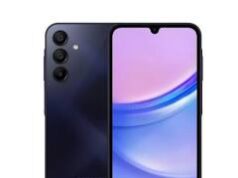
You can explore Samsung galaxy models here: Samsung Galaxy collection
Table of Contents
Samsung Phone Features: How to Stop Call Forwarding on Samsung
Many users enable call forwarding without realizing it, especially when trying to divert calls during travel or when using two numbers.
If calls are being redirected to another number, you may need to learn how to stop call forwarding on Samsung phone easily.
Follow these steps:
- Open the Phone app
- Tap the three dots at the top corner
- Select Settings
- Tap Supplementary services or Call settings
- Select Call forwarding
- Turn off all forwarding options
After disabling it, incoming calls will come directly to your phone again.
Expert tip: If forwarding was activated by your network provider, you may also need to dial the network cancellation code. This is useful when learning how to cancel call forwarding on Samsung Galaxy phones.
Samsung Phone Features: How to Screenshot on Samsung
Screenshots are useful for saving receipts, capturing conversations, or sharing information quickly.
The easiest method for how to take screenshot on Samsung phone without apps is using the button combination.
Steps:
- Press the Power button and Volume Down button at the same time
- Hold both buttons briefly
- The screen will flash to confirm the screenshot
The image will automatically save in your gallery.
Another option is palm swipe if the feature is enabled in settings. This method is helpful for users searching for how to capture screen on Samsung Galaxy phones quickly.
Samsung Phone Features: How to Screen Record on a Samsung Phone
Screen recording is useful for tutorials, game recording, or showing someone how to use an app.
Samsung includes a built-in recorder, making it simple to learn how to screen record on Samsung phone without third party apps.
Steps:
- Swipe down from the top of the screen
- Open the Quick Panel
- Tap Screen Recorder
- Choose sound settings if needed
- Tap Start recording
The phone will capture everything on the screen.
This feature is particularly useful for content creators and people searching for how to record screen on Samsung Galaxy for tutorials.
Samsung Phone Features: How to Update Play Store on Android
Updating the Play Store ensures your apps install properly and receive security updates.
If your Play Store behaves slowly or refuses to download apps, you may need to know how to update Google Play Store on Samsung phone manually.
Steps:
- Open Google Play Store
- Tap your profile icon
- Select Settings
- Tap About
- Select Update Play Store
If an update is available, it will install automatically.
Keeping the Play Store updated improves app security and helps with how to fix Play Store not updating apps on Samsung devices.
Samsung Phone Features: How to Hide Applications on Android
Many Samsung users prefer to keep some apps private, especially banking or personal apps.
Samsung phones allow you to hide apps directly from the home screen.
To learn how to hide apps on Samsung phone without installing another app, follow these steps:
- Open Settings
- Tap Home Screen
- Select Hide apps
- Choose the apps you want hidden
- Tap Apply
The apps will disappear from the app drawer but remain installed.
This method works well for users interested in how to hide applications on Android Samsung phones securely.
Samsung Phone Features: How to Turn Off Safe Mode on Samsung
Safe mode helps diagnose software problems, but many users accidentally activate it and do not know how to exit.
If your phone shows Safe Mode at the bottom of the screen, you may need to learn how to turn off safe mode on Samsung phone quickly.
Steps:
- Press and hold the Power button
- Tap Restart
- Wait for the phone to reboot
If safe mode remains active, check if the volume button is stuck during startup.
This solution works for users searching for how to remove safe mode from Samsung Galaxy devices.
How to Scan QR Code on Samsung
QR codes are now widely used in Nigeria for payments, event access, and product verification.
Samsung phones make it easy to learn how to scan QR code on Samsung phone using camera.
Steps:
- Open the Camera app
- Point the camera at the QR code
- Tap the link that appears on the screen
You can also scan codes using the Quick Panel QR scanner.
This feature is useful for people learning how to scan QR code on Android Samsung phones for payments and links.
How to Remove Private Number on Samsung
Sometimes calls appear as Private Number because caller ID settings are turned off.
If people cannot see your number when you call, you may need to know how to remove private number on Samsung phone settings.
Steps:
- Open the Phone app
- Tap the three dots
- Select Settings
- Tap Supplementary services
- Select Show caller ID
- Choose Network default or Show number
This setting ensures your contacts can see your number.
It is helpful for users searching how to show caller ID on Samsung Galaxy phones easily.
How to Clear Cache on Android Phone
Clearing cache improves performance and solves many common app problems.
If your phone feels slow or apps freeze, you may need to learn how to clear cache on Samsung Android phone for better performance.
Steps:
- Open Settings
- Tap Apps
- Select the app you want
- Tap Storage
- Select Clear cache
You can also clear system cache using device care settings.
This method is helpful for people looking for how to clear cache on Android phone to make it faster.
When It Might Be Time to Upgrade Your Samsung Phone
While these tips improve everyday performance, older phones may still struggle with heavy apps or storage limitations.
If you experience:
• Frequent lag when opening apps
• Battery draining too quickly
• Camera quality no longer meeting your needs
It may be worth considering a newer Samsung device.
You can explore newer models here: Samsung Galaxy collection
Quick Comparison of Popular Samsung Series
| Samsung Series | Best For | Typical Users |
| Galaxy A Series | Affordable everyday use | Students and casual users |
| Galaxy S Series | Premium performance and camera | Professionals and creators |
| Galaxy Z Series | Foldable innovation | Tech enthusiasts |
Choosing the right model depends on your budget and daily usage.
Expert Recommendation
Samsung phones come with many built in features that most users never fully explore. Learning how to control settings like call forwarding, safe mode, cache management, and privacy options can significantly improve your phone experience.
Before replacing your device, try these solutions first. In many cases, simple adjustments can make your Samsung phone faster, safer, and easier to use.
If you are planning an upgrade, check the latest Samsung devices available here: Samsung phones on Kara
This ensures you choose a device that fits your needs and budget.